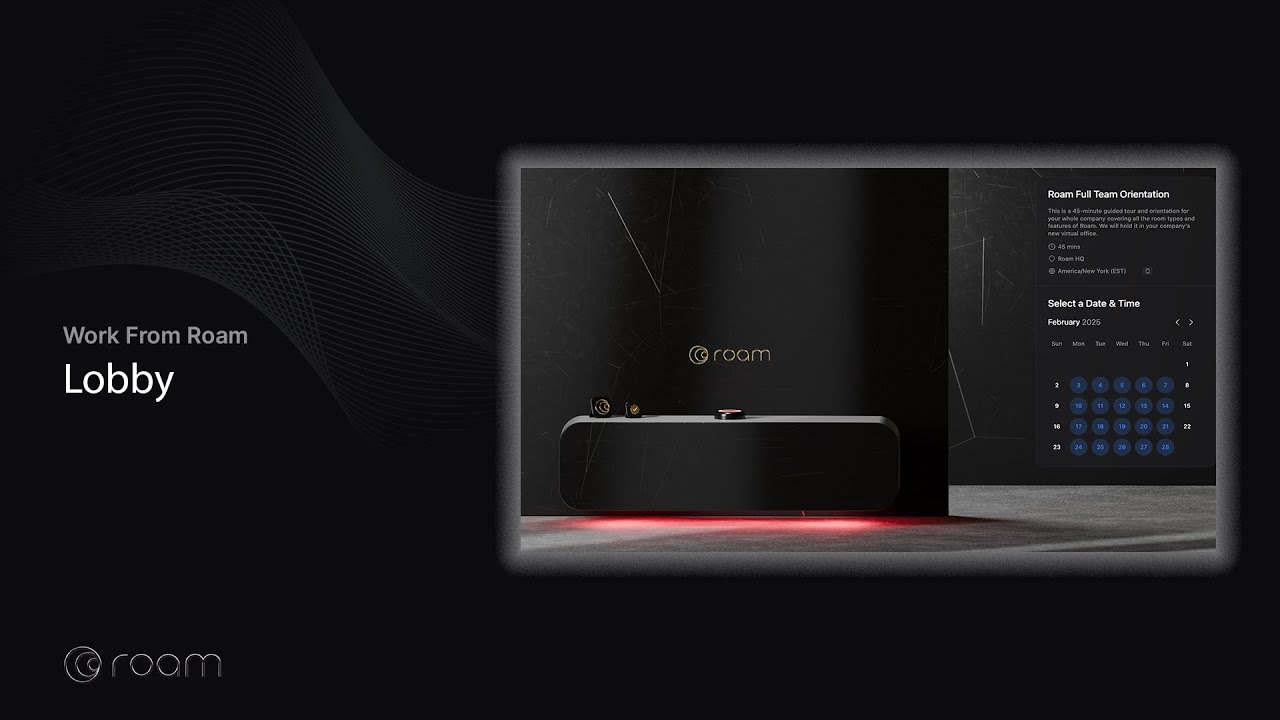
Configure Lobby
- Click your Lobby in the top right of the Floor Map.
- If your Floor Map doesn’t show a Lobby card on the right, click the Lobby button in the top toolbar.
- Choose the Lobby you’d like to customize under My Links.
- Choose one of the top-level Lobby options:
- General: Edit the name, description, and basic details of your lobby link. Turn scheduling or Drop-Ins on or off, add additional hosts, and click Add Duration Option to let guests choose from multiple meeting lengths.
- Design: Customize the overall look to match your brand. Change colors, logos, backgrounds, and add your shelf.
- Availability: Control when people can access booking options or connect with you. Set working hours, time zones, scheduling windows, and Date-Specific Hours for vacations, travel, holidays, or other exceptions to your normal schedule. These hours govern scheduled bookings; Drop-Ins also follow them unless you allow Drop-Ins outside available hours under General.
- Destination: Select where in Roam the meeting will take place.
- Reminders: Manage reminder notifications. Configure email or SMS reminders, including timing, frequency, and messaging.
- Workflows: Post Lobby updates in a channel. With Magic Minutes, apply Magic Minutes Templates to structure your notes by meeting type, and set Default Folders to automatically record Magic Minutes and file new scheduled meetings in shared folders.
- Custom Questions: Collect information before the meeting. Ask open-ended or multiple choice questions in various formats, add dropdown selections, set required fields, or Notes to learn more about the visitor’s needs.
- Advanced: Manage SEO, disable booking emails, add a Google Tracking ID, and change your lobby link handle.

Edit Lobby Link
You can edit your Lobby link, which is a unique URL on the Roam domain (e.g., ro.am/john). Click the three dots next your Lobby Link and select Edit Lobby Link.
- Open your Lobby settings.
- Go to Advanced > Choose Your Lobby Link.
- Choose your new Lobby link.
- Click Done.
Note: If you use multiple calendars, add conflict calendars so Lobby can check availability across all of them.
Allow Drop-Ins Outside Available Hours
By default, Drop-Ins follow the hours configured under Availability. To accept them at other times, go to General and enable Drop-Ins Outside Available Hours.
This bypasses your configured hours only. A visitor can still drop in only while you are alone in your assigned Private Office and are not in Do Not Disturb mode. Roam also continues to respect conflicts on connected calendars and buffers before upcoming meetings.
Track Lobby Visits and Bookings
To use Google Analytics or Google Ads with your public Lobby page:
- Open your Lobby settings.
- Go to Advanced > Google Tracking ID.
- Enter your Google tag ID.
- Click Done.
The Google tag records visits to the public Lobby page and a lobby_booking_completed event when a visitor completes a booking. Tracking follows the visitor’s consent choices where required.