Schedule a Theater presentation
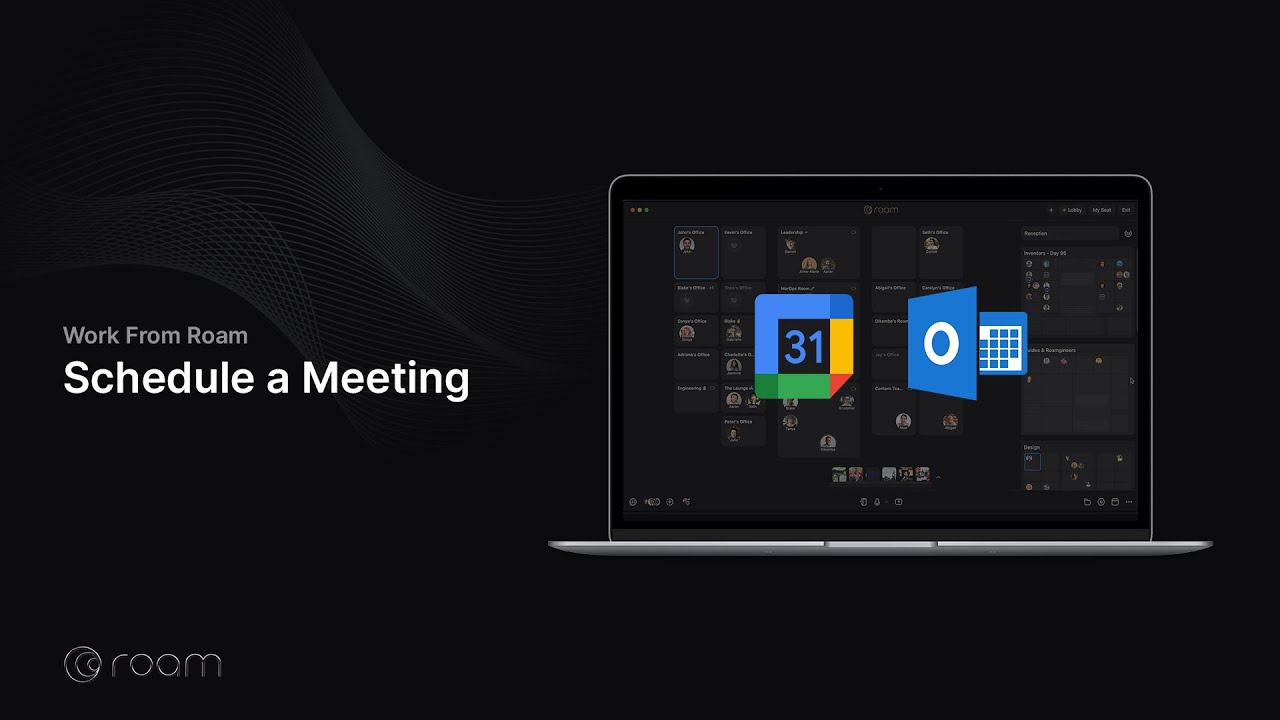
To schedule a Theater presentation, set up a calendar event in Google Calendar or Outlook Calendar or create a Roam meeting link in Settings > Links. Then assign the event or link to a Theater in Roam. Once the room is assigned, visitors using the link will arrive directly in the Theater audience.
For modern, RSVP-based virtual events with guest invitations and follow-up messaging, create an On-Air event and assign the Theater as the destination.
Scheduling from Google Calendar
- Click “Add video conferencing” and select “Roam Meeting” from the dropdown.
- Click the Roam icon on the far right of the Event page.
- Choose the floor where the Theater is located and select the Theater as the room.
- Save the event.
Scheduling from Outlook Calendar
- Click Roam > Configure Meeting from the toolbar.
- If you don’t see the Roam menu, click ⋯ and then Roam.
- Choose the floor where the Theater is located and select the Theater as the room.
- Save the event.
Scheduling with On-Air
- Create an On-Air event and select the Theater destination.
- Share the event page URL and invite guests.
- Before go-live, use the pre-show checklist.
Guides
All Virtual Office Platform GuidesVirtual Office Platform GuideVideo Conferencing GuideEnterprise Messaging GuideAI Note Taker GuideMeeting Scheduler GuideScreen Recorder GuideVirtual Events GuideAI Assistant for Work GuideVirtual All-Hands GuideUse Cases
AI StartupsCrypto and Web3 TeamsDesign AgenciesEcommerce AgenciesInsurance TeamsMortgage TeamsRemote TeamsExecutive Assistants© 2026 Roam HQ